
Loading a New Roll
Step 1
Insert a new towel roll so that the core fits into the roll holder and the paper feeds over the top of the roll in front of the crossbar.
Position the end of the towels under the blue transfer bar leaving a 1” flap as shown.
Step 2
Close cover. Wave hand for towel to dispense.
Loading Replacement Roll
Step 1
Pull the carousel lock bar toward you and rotate the carousel down 180° until the partial roll is locked into place at the bottom. Rewind any excess paper back onto the roll.
NOTE: Partial roll must be equal in size or smaller than the width of the roll holder (3.75”) before rotating to bottom.
Step 2
Insert a new towel roll so that the core fits into the roll holder and the paper feeds over the top of the roll in front of the crossbar.
Step 3
Position the end of the towel under the blue transfer bar leaving a 1” flap as shown. The new roll will automatically begin dispensing after partial roll is depleted.
NOTE: Do not press the sheet feed button as this will cause the dispenser to double-feed.
Step 2
Close cover. The enMotion® Automated Towel Dispenser is now ready for operation.
Dispenser Settings
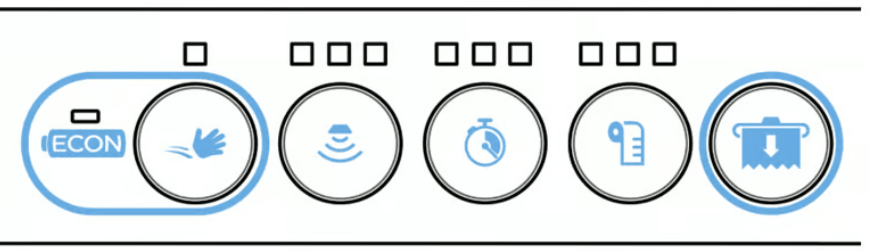



Towel Settings

Sheet Length
Sheet length may be adjusted to a short, medium, or long setting
Sheet Feed Button
Sheet feed button is used to advance a towel while loading

Sensor Range
Sensor range adjusts distance from hand to dispenser for motion mode dispensing

Time Delay
Time delay allows towels to dispense at variable time intervals after a towel is taken from dispenser
Motion Mode, Motion Mode + ECON, and Auto Supply
This Button toggles between Motion Mode, Motion Mode + ECON, and Auto Supply Mode.

Motion Mode
Motion mode requires the user to wave hand to dispense towel.

Auto Supply Mode
Auto supply automatically supplies a towel after a towel is taken.

Motion Mode + ECON
ECON mode activates auto supply mode after 3 hours of inactivity to conserve battery. The dispenser reverts to motion mode when a user takes a towel.
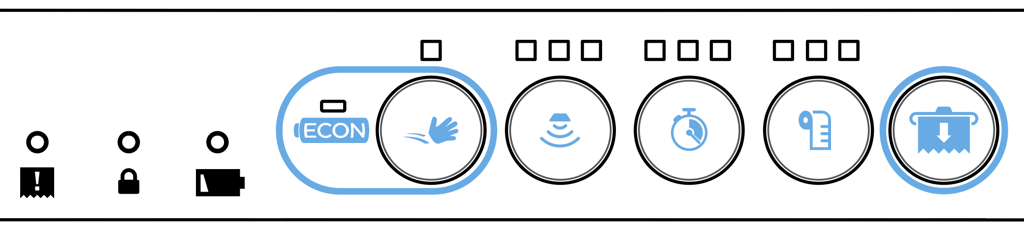
Dispenser Lights
These lights communicate different statuses that the dispenser is in.

Low Battery
Red light flashes slowly when battery is low. Light flashes quickly when battery is very low.

Paper Jam
All three lights flashing indicate paper jam.

Locked Settings
Dispenser settings are locked when Blue Lock Light is illuminated. To lock and unlock, press and hold the sheet length button for 3 seconds. Settings can be changed while the dispenser is unlocked.
This blue light also Illuminates when a towel is dispensed.
Battery Loading
Step 1
Use key to open front cover and remove towel roll(s) if needed.
Step 2
Open battery cover and remove depleted batteries. Insert four new D-cell alkaline batteries.
Step 3
Close battery cover, reload towel roll(s) and close cover.

Battery Care and Disposal
1.
Keep in original packaging until ready for use.
2.
Remove battery from device when not in use for an extended period of time.
3.
Never disassemble battery. Chemicals inside battery can be dangerous if swallowed or exposed to skin.
4.
Avoid mechanical or electrical abuse.
5.
Keep away from children.
6.
Battery is not designed to be recharged.
7.
Avoid extreme temperatures.
8.
Do not incinerate, since battery may explode at excessive temperatures.
9.
Do not dispose of large amounts of batteries as it creates a safety risk.
10.
Dispose of accumulated batteries in accordance with appropriate federal, state, and local regulations.
11.
Do not mix old and new batteries or nonrechargeable and rechargeable batteries.
12.
Rechargeable batteries are not recommended.